Ransomware, fala sério!

Recently, a user contacted me in regards to what looks like a new, Brazilian ransomware. In this blog post, we’re taking a quick look at the ransom and how to unlock or decrypt your files.

TL;DR: to unlock your files, you can use the key or password: 123
Para desbloquear seus arquivos, você pode usar a chave ou a senha: 123

The title of this blog loosely translates to: ransomware, no way! (excuse my Portuguese)

The ransomware appears to call itself ‘Sem Solução’; which translates to ‘Hopeless’ or ‘No Solution’. I propose we call it ‘Hopeless ransomware’:

Figure 1 – ‘Seus arquivos foram criptografados’

Sua IDNão a formas de recuperar sem comprar a senha, ser tenta eu apago tudo!O método de pagamento é via Bitcoins.  O preço é: 600,00 REAIS =  Bitcoins
Não tem Bitcoins?, pesquise no google e aprenda comprar ou clique em Compra Bitcoinsenvie os bitcoins para: 1LULpQbdvoAWqKzhe8fuMiPQ8iGdW36pk1Para receber a senha, voce precisa criar uma e-mail em https://mail.protonmail.comE enviar SUA ID para 785910@protonmail.com em 24h ou mais voce receberá a sua senha!, Obrigado..

Translated:

Your IDNot the ways to recover without buying the password, be try I delete everything!The method of payment is via Bitcoins. The price is: 600,00 REAIS = Bitcoins
Do not have Bitcoins ?, search google and learn how to buy or click Buy BitcoinsSend the bitcoins to: 1LULpQbdvoAWqKzhe8fuMiPQ8iGdW36pk1To receive the password, you need to create an email at https://mail.protonmail.comAnd send YOUR ID to 785910@protonmail.com in 24h or more you will receive your password !, Thank you ..

The price is 600 REAIS (Brazilian Real), which currently amounts to 0.15 BTC.
(176 EUR | 155 GBP | 199 USD)

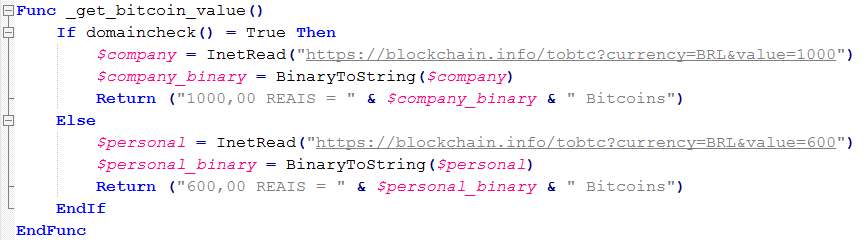
Interestingly enough, the ransomware has a built-in function to detect whether or not your machine belongs to a domain, and if so, will increase the amount of ransom to be paid to a whopping 1000 REAIS, or 0.25 BTC. (293 EUR | 259 GBP | 333 USD)

Figure 2 – Func _get_bitcoin_value()

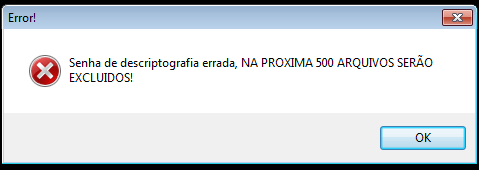
The ransomware author or authors is/are definitely not kidding: if you enter a wrong password, the ransom will start deleting files.

Figure 3 – ‘Error!”, “Senha de descriptografia errada, NA PROXIMA 500 ARQUIVOS SERÃO EXCLUIDOS!’

Files to encrypt, including those used in virtualization software such as VMware for example:

zip, 7z, rar, pdf, doc, docx, xls, xlsx, pptx, pub, one, vsdx, accdb, asd, xlsb, mdb, snp, wbk, ppt, psd, ai, odt, ods, odp, odm, , , odc, odb, docm, wps, xlsm, xlk, pptm, pst, dwg, dxf, dxg, wpd, rtf, wb2, mdf, dbf, pdd, eps, indd, cdr, dng, 3fr, arw, srf, sr2, bay, crw, cr2, dcr, kdc, erf, mef, mrw, nef, nrw, orf, raf, raw, rwl, rw2, r3d, ptx, pef, srw, x3f, der, cer, crt, pem, pfx, p12, p7b, p7c, abw, til, aif, arc, as, asc, asf, ashdisc, asm, asp, aspx, asx, aup, avi, bbb, bdb, bibtex, bkf, bmp, bpn, btd, bz2, c, cdi, himmel, cert, cfm, cgi, cpio, cpp, csr, cue, dds, dem, dmg, dsb, eddx, edoc, eml, emlx, EPS, epub, fdf, ffu, flv, gam, gcode, gho, gpx, gz, h, hbk, hdd, hds, hpp, ics, idml, iff, img, ipd, iso, isz, iwa, j2k, jp2, jpf, jpm, jpx, jsp, jspa, jspx, jst, key, keynote, kml, kmz, lic, lwp, lzma, M3U, M4A, m4v, max, mbox, md2, mdbackup, mddata, mdinfo, mds, mid, mov, mp3, mp4, mpa, mpb, mpeg, mpg, mpj, mpp, msg, mso, nba, nbf, nbi, nbu, nbz, nco, nes, note, nrg, nri, afsnit, ogg, ova, ovf, oxps, p2i, p65, p7, pages, pct, PEM, phtm, phtml, php, php3, php4, php5, phps, phpx, phpxx, pl, plist, pmd, pmx, ppdf, pps, ppsm, ppsx, ps, PSD, pspimage, pvm, qcn, qcow, qcow2, qt, ra, rm, rtf, s, sbf, set, skb, slf, sme, smm, spb, sql, srt, ssc, ssi, stg, stl, svg, swf, sxw, syncdb, tager, tc, tex, tga, thm, tif, tiff, toast, torrent, txt, vbk, vcard, vcd, vcf, vdi, vfs4, vhd, vhdx, vmdk, vob, wbverify, wav, webm, wmb, wpb, WPS, xdw, xlr, XLSX, xz, yuv, zipx, jpg, jpeg, png, bmp

Additionally, Steam users aren’t spared of getting their files encrypted either:

Figure 4 – Executable files in Steam’s games directory will be encrypted

In reality, it appears all files are encrypted, regardless of extension.

The ransomware ultimately calls home and leverages Pastebin to do so. However, when analysing the ransomware, none of the Pastebin links were online as they had been removed.

$data = “pcname=” & @ComputerName & “&hwid=” & $key & “&version=Locker”

At time of writing, no payments have been made as of yet to the Bitcoin address:
1LULpQbdvoAWqKzhe8fuMiPQ8iGdW36pk1

The ransomware encrypts files prepending the original extension with ‘.encrypted.’. For example;
image.png would become: image.encrypted.png

The ransomware is based on CryptoWire, an open-sourced ransomware written in AutoIT.

Decryption

To unlock your files, you can use the key or password: 123
Para desbloquear seus arquivos, você pode usar a chave ou a senha: 123

Note: as always, prevention is more important than decryption or disinfection! Have a look at the dedicated page I’ve set up here.


Conclusion

While ransomware is anything but uncommon, ransomware likely stemming from Brazil and specifically targeting Brazilian users and businesses, is less likely to happen. In fact, the only notable example, as far as I know, is TeamXRat also known as Xpan ransomware.

Below you may find IOCs.

IOCs


Continue reading Ransomware, fala sério!

Android malware on the rise

Recently, a friend of mine encountered an interesting phishing attempt:

Don’t often see this delivery method #phising #mobile #malware #apk pic.twitter.com/HgqtCUAox6

— Cristian Iankovszky (@cizky) January 31, 2017

The message reads:

DHL has attempted to deliver the parcel no.: 1993747, but nobody was available. Please arrange re-delivery using our mobile app: http://dhl-tracking[.]online/app.apk

In this blog post, we’ll analyse the malware in question (Marcher, banking trojan) and provide disinfection and prevention advice. Click on any of the relevant links below according to your needs:

Analysis
Disinfection
Prevention
Conclusion
Resources

Analysis

When you visit the link, a file called app.apk gets downloaded with the following characteristics:

MD5 80c797acf9bdbe225e877520275e15f5
SHA1 f255de54ffbff87067cfa7bc30d6d87a00aded8f
SHA256 fcd18a2b174a9ef22cd74bb3b727a11b4c072fcef316aefbb989267d21d8bf7d
Package name ijrtc.jwieuvxpjavuklczxdqecvhrjcvuho

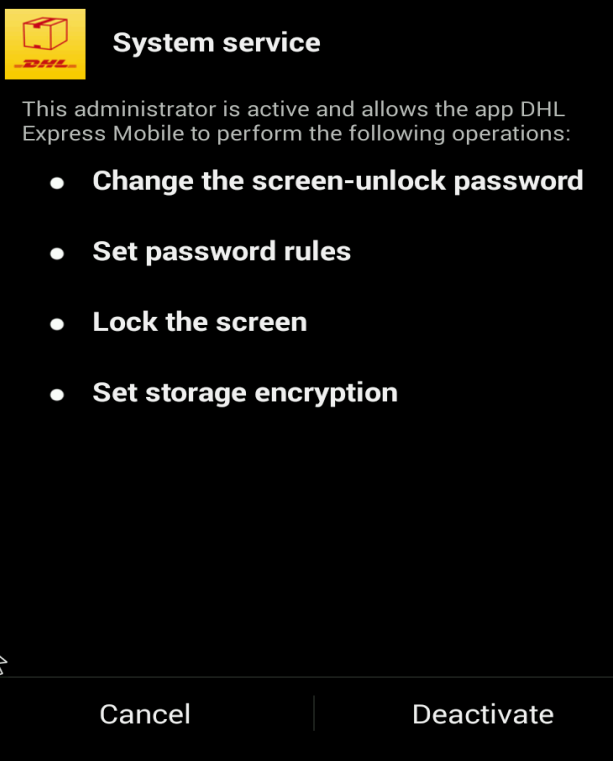
The application presents itself as ‘DHL Express Mobile’ while being installed and will ask for device administrator rights:

Figure 1 – System service

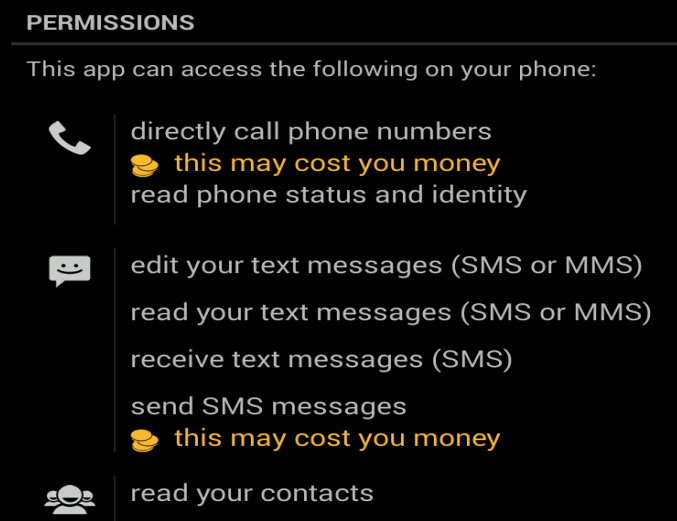
Basically, the app can do anything it desires:

Figure 2 – Permissions; this includes & reading text messages

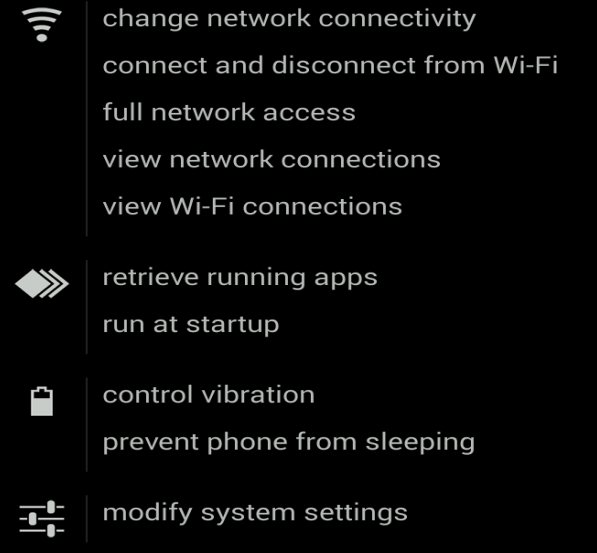
Figure 3 – Permissions; note the ‘modify system settings’

The payload, or the actual malware that is installed, is the Marcher banking trojan. Recently, it has been masquerading as applications for package delivery, such as DHL in the example above, Posta Online or an app called Alza.

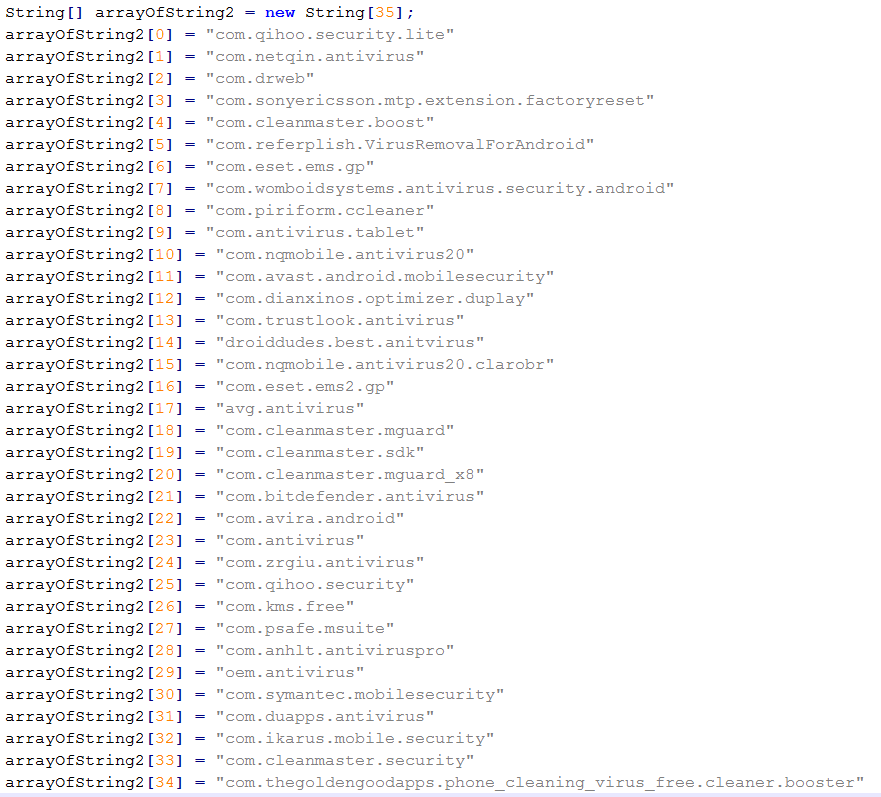
Marcher checks if any of the following antivirus or security products are installed:

Figure 4 – AV list

… And targets the following applications:

Figure 5 – Targeted apps

Besides targeting antivirus applications, Marcher also uses some nasty tricks to avoid removal:

  • Marcher installs itself as Device Administrator, effectively making the user unable to force the process to stop or uninstall the application normally;
  • When you attempt to force uninstall the application, it will show you the device administrator prompt, as seen in Figure 1, which will continue to pop-up.

All in all, the malware isn’t obfuscated much, but still proves to have particular persistence mechanisms. One does not exclude the other.

If you are only here for Indicators of Compromise, please find below:

You may also want to check out my blog post which provides a plethora of options and software/tools on how to analyze Android malware:
Analysing Android files

Disinfection

Marcher proves more difficult to remove as outlined above. The best way in this case is to back up your files and reinstall your operating system.

There is an excellent article on MakeUseOf on how to get to your phone’s ‘safe mode’, create a back-up and finally factory restore or reinstall your operating system:
Dealing with System Problems in Android: Safe Mode, Factory Reset & Restoring Backups

Alternatively, you may try the following steps to remove Marcher, which also involves going into safe mode:

  • Hold down the Power button on the side of your phone until a popup appears.
  • On the menu that shows up, hold down the Power Off option until a popup appears.
  • Tap OK to reboot into Safe Mode.
  • You should now be in Safe Mode.
  • Go to Settings > Security > Device administration > Device administrators or Phone administrators.
  • Tap on the malicious application.
  • Tap Deactivate in the next screen. In our example:
Figure 6 – deactive the app
  • Now, go to  Settings > Applications or Apps > Manage applications > tap the malicious app > Uninstall.

For normal applications that don’t have device administrator rights, only the last step is sufficient.

Afterwards, change all your passwords and notify your bank to be on lookout for any fraudulent transactions. Do this also if your bank is not listed (affected banks pictured in Figure 5).

Additionally, you may want to run a scan with an antivirus or antimalware product for Android. If you’re unsure which antivirus to run, you can try Avast (it also detects the Marcher version discussed in this blog post).

You may want to have a look at other antivirus products if Avast does not suit your needs. A good comparison can be found on AV-test’s website: The best antivirus software for Android.

Note that the best course, in any case, is to backup your files and reinstall your device! Don’t forget to change passwords and notify your bank.

Prevention

  • Don’t root your Android device(s).
  • Don’t just install any app. Use common sense. When in doubt, do not install the app.
  • Be wary of suspicious-looking apps even when they have a lot of positive feedback. These may be fake comments. Ask friends, colleagues or Google. Still not sure? Do not install the app.
  • Download from official app stores only. Even though malware may exist on Google’s Play store, chances are less likely.
  • Use the default, built-in security in Android. For example, do not allow installation of apps from unknown sources and Encrypt Device.
  • Always verify app permissions. Depending on the app, it should not be able to directly call other phone numbers.
  • Back up your files. If something like this ever happens to you, simply reinstall and restore.
  • Install an antivirus. This may be a resident one, meaning no active protection and scanning only.

More useful links are listed below in the Resources section.

Conclusion

While Windows malware still takes the biggest portion, malware for other operating systems is becoming more and more common. In regards to Android, make sure to follow the prevention tips above to stay safe.

Worth noting that, as always, prevention is better than disinfection. Create (and test) back-ups.

Resources

Analysing Android files – Blaze’s Security Blog
Dealing with System Problems in Android: Safe Mode, Factory Reset & Restoring Backups – MakeUseOf
DevicePolicyManager – Android developer area
F-Secure Freedome VPN  – F-Secure
How Do I Delete Applications from My Android Device? – Lifewire
The best antivirus software for Android – AV-Test
What Is A Nandroid Backup and How Exactly Does It Work?  – MakeUseOf

IOCs Continue reading Android malware on the rise

Posted in SBN

Android malware on the rise

Recently, a friend of mine encountered an interesting phishing attempt:

Don’t often see this delivery method #phising #mobile #malware #apk pic.twitter.com/HgqtCUAox6

— Cristian Iankovszky (@cizky) January 31, 2017

The message reads:

DHL has attempted to deliver the parcel no.: 1993747, but nobody was available. Please arrange re-delivery using our mobile app: http://dhl-tracking[.]online/app.apk

In this blog post, we’ll analyse the malware in question (Marcher, banking trojan) and provide disinfection and prevention advice. Click on any of the relevant links below according to your needs:

Analysis
Disinfection
Prevention
Conclusion
Resources

Analysis

When you visit the link, a file called app.apk gets downloaded with the following characteristics:

MD5 80c797acf9bdbe225e877520275e15f5
SHA1 f255de54ffbff87067cfa7bc30d6d87a00aded8f
SHA256 fcd18a2b174a9ef22cd74bb3b727a11b4c072fcef316aefbb989267d21d8bf7d
Package name ijrtc.jwieuvxpjavuklczxdqecvhrjcvuho

The application presents itself as ‘DHL Express Mobile’ while being installed and will ask for device administrator rights:

Figure 1 – System service

Basically, the app can do anything it desires:

Figure 2 – Permissions; this includes & reading text messages

Figure 3 – Permissions; note the ‘modify system settings’

The payload, or the actual malware that is installed, is the Marcher banking trojan. Recently, it has been masquerading as applications for package delivery, such as DHL in the example above, Posta Online or an app called Alza.

Marcher checks if any of the following antivirus or security products are installed:

Figure 4 – AV list

… And targets the following applications:

Figure 5 – Targeted apps

Besides targeting antivirus applications, Marcher also uses some nasty tricks to avoid removal:

  • Marcher installs itself as Device Administrator, effectively making the user unable to force the process to stop or uninstall the application normally;
  • When you attempt to force uninstall the application, it will show you the device administrator prompt, as seen in Figure 1, which will continue to pop-up.

All in all, the malware isn’t obfuscated much, but still proves to have particular persistence mechanisms. One does not exclude the other.

If you are only here for Indicators of Compromise, please find below:

You may also want to check out my blog post which provides a plethora of options and software/tools on how to analyze Android malware:
Analysing Android files

Disinfection

Marcher proves more difficult to remove as outlined above. The best way in this case is to back up your files and reinstall your operating system.

There is an excellent article on MakeUseOf on how to get to your phone’s ‘safe mode’, create a back-up and finally factory restore or reinstall your operating system:
Dealing with System Problems in Android: Safe Mode, Factory Reset & Restoring Backups

Alternatively, you may try the following steps to remove Marcher, which also involves going into safe mode:

  • Hold down the Power button on the side of your phone until a popup appears.
  • On the menu that shows up, hold down the Power Off option until a popup appears.
  • Tap OK to reboot into Safe Mode.
  • You should now be in Safe Mode.
  • Go to Settings > Security > Device administration > Device administrators or Phone administrators.
  • Tap on the malicious application.
  • Tap Deactivate in the next screen. In our example:
Figure 6 – deactive the app
  • Now, go to  Settings > Applications or Apps > Manage applications > tap the malicious app > Uninstall.

For normal applications that don’t have device administrator rights, only the last step is sufficient.

Afterwards, change all your passwords and notify your bank to be on lookout for any fraudulent transactions. Do this also if your bank is not listed (affected banks pictured in Figure 5).

Additionally, you may want to run a scan with an antivirus or antimalware product for Android. If you’re unsure which antivirus to run, you can try Avast (it also detects the Marcher version discussed in this blog post).

You may want to have a look at other antivirus products if Avast does not suit your needs. A good comparison can be found on AV-test’s website: The best antivirus software for Android.

Note that the best course, in any case, is to backup your files and reinstall your device! Don’t forget to change passwords and notify your bank.

Prevention

  • Don’t root your Android device(s).
  • Don’t just install any app. Use common sense. When in doubt, do not install the app.
  • Be wary of suspicious-looking apps even when they have a lot of positive feedback. These may be fake comments. Ask friends, colleagues or Google. Still not sure? Do not install the app.
  • Download from official app stores only. Even though malware may exist on Google’s Play store, chances are less likely.
  • Use the default, built-in security in Android. For example, do not allow installation of apps from unknown sources and Encrypt Device.
  • Always verify app permissions. Depending on the app, it should not be able to directly call other phone numbers.
  • Back up your files. If something like this ever happens to you, simply reinstall and restore.
  • Install an antivirus. This may be a resident one, meaning no active protection and scanning only.

More useful links are listed below in the Resources section.

Conclusion

While Windows malware still takes the biggest portion, malware for other operating systems is becoming more and more common. In regards to Android, make sure to follow the prevention tips above to stay safe.

Worth noting that, as always, prevention is better than disinfection. Create (and test) back-ups.

Resources

Analysing Android files – Blaze’s Security Blog
Dealing with System Problems in Android: Safe Mode, Factory Reset & Restoring Backups – MakeUseOf
DevicePolicyManager – Android developer area
F-Secure Freedome VPN  – F-Secure
How Do I Delete Applications from My Android Device? – Lifewire
The best antivirus software for Android – AV-Test
What Is A Nandroid Backup and How Exactly Does It Work?  – MakeUseOf

IOCs Continue reading Android malware on the rise

Posted in SBN