Android malware on the rise

Recently, a friend of mine encountered an interesting phishing attempt:

Don’t often see this delivery method #phising #mobile #malware #apk pic.twitter.com/HgqtCUAox6

— Cristian Iankovszky (@cizky) January 31, 2017

The message reads:

DHL has attempted to deliver the parcel no.: 1993747, but nobody was available. Please arrange re-delivery using our mobile app: http://dhl-tracking[.]online/app.apk

In this blog post, we’ll analyse the malware in question (Marcher, banking trojan) and provide disinfection and prevention advice. Click on any of the relevant links below according to your needs:

Analysis
Disinfection
Prevention
Conclusion
Resources

Analysis

When you visit the link, a file called app.apk gets downloaded with the following characteristics:

MD5 80c797acf9bdbe225e877520275e15f5
SHA1 f255de54ffbff87067cfa7bc30d6d87a00aded8f
SHA256 fcd18a2b174a9ef22cd74bb3b727a11b4c072fcef316aefbb989267d21d8bf7d
Package name ijrtc.jwieuvxpjavuklczxdqecvhrjcvuho

The application presents itself as ‘DHL Express Mobile’ while being installed and will ask for device administrator rights:

Figure 1 – System service

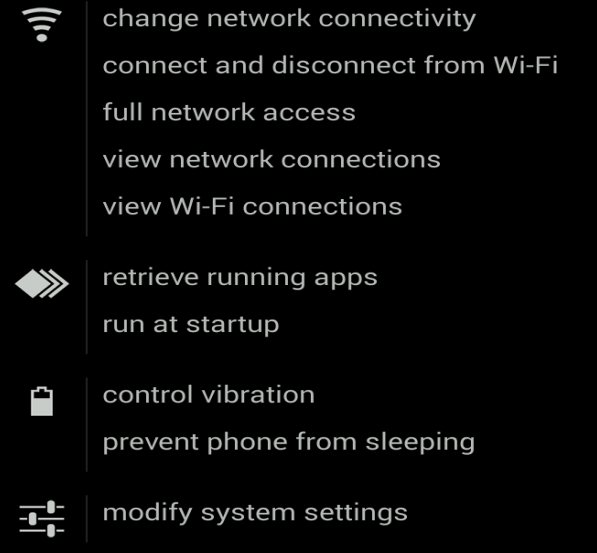
Basically, the app can do anything it desires:
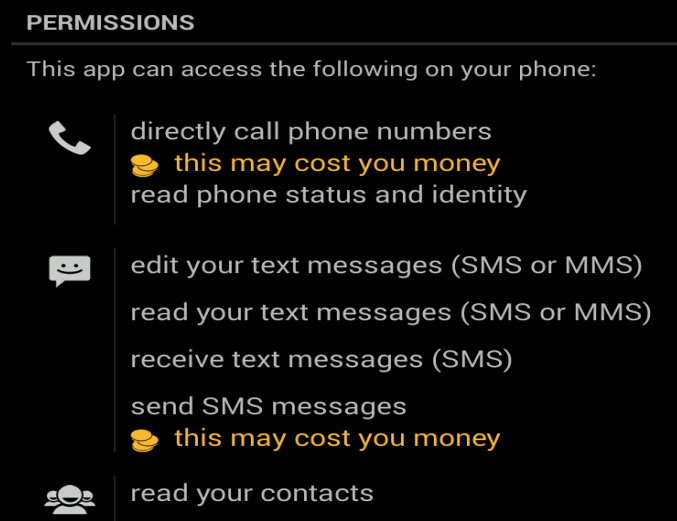
Figure 2 – Permissions; this includes & reading text messages

Figure 3 – Permissions; note the ‘modify system settings’

The payload, or the actual malware that is installed, is the Marcher banking trojan. Recently, it has been masquerading as applications for package delivery, such as DHL in the example above, Posta Online or an app called Alza.

Marcher checks if any of the following antivirus or security products are installed:
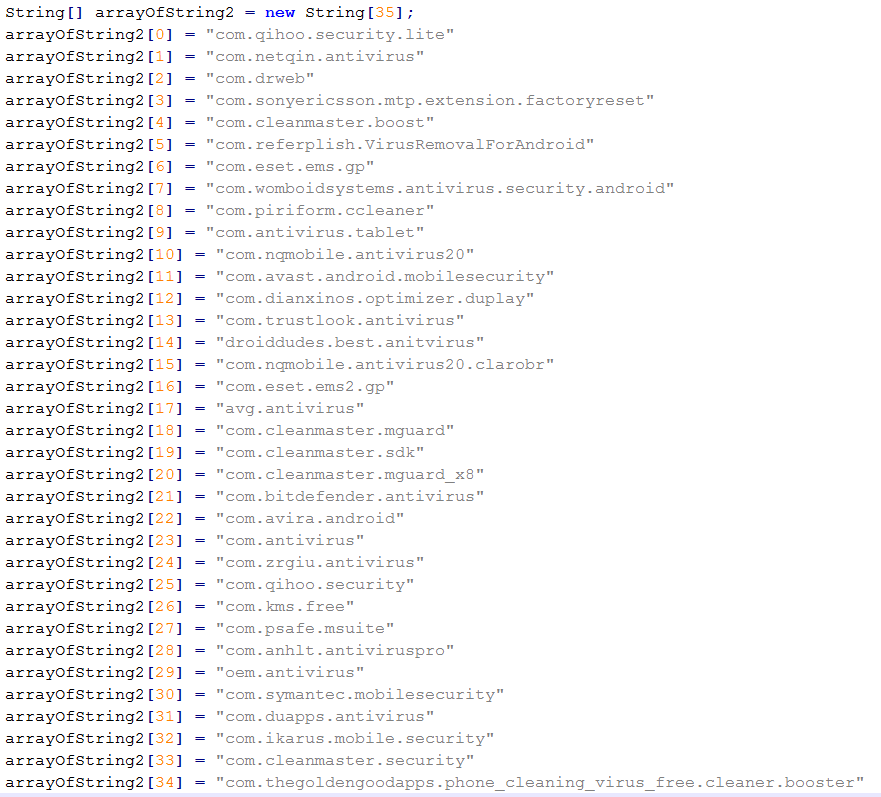
Figure 4 – AV list

… And targets the following applications:

Figure 5 – Targeted apps

Besides targeting antivirus applications, Marcher also uses some nasty tricks to avoid removal:

  • Marcher installs itself as Device Administrator, effectively making the user unable to force the process to stop or uninstall the application normally;
  • When you attempt to force uninstall the application, it will show you the device administrator prompt, as seen in Figure 1, which will continue to pop-up.

All in all, the malware isn’t obfuscated much, but still proves to have particular persistence mechanisms. One does not exclude the other.

If you are only here for Indicators of Compromise, please find below:

You may also want to check out my blog post which provides a plethora of options and software/tools on how to analyze Android malware:
Analysing Android files

Disinfection

Marcher proves more difficult to remove as outlined above. The best way in this case is to back up your files and reinstall your operating system.

There is an excellent article on MakeUseOf on how to get to your phone’s ‘safe mode’, create a back-up and finally factory restore or reinstall your operating system:
Dealing with System Problems in Android: Safe Mode, Factory Reset & Restoring Backups

Alternatively, you may try the following steps to remove Marcher, which also involves going into safe mode:

  • Hold down the Power button on the side of your phone until a popup appears.
  • On the menu that shows up, hold down the Power Off option until a popup appears.
  • Tap OK to reboot into Safe Mode.
  • You should now be in Safe Mode.
  • Go to Settings > Security > Device administration > Device administrators or Phone administrators.
  • Tap on the malicious application.
  • Tap Deactivate in the next screen. In our example:
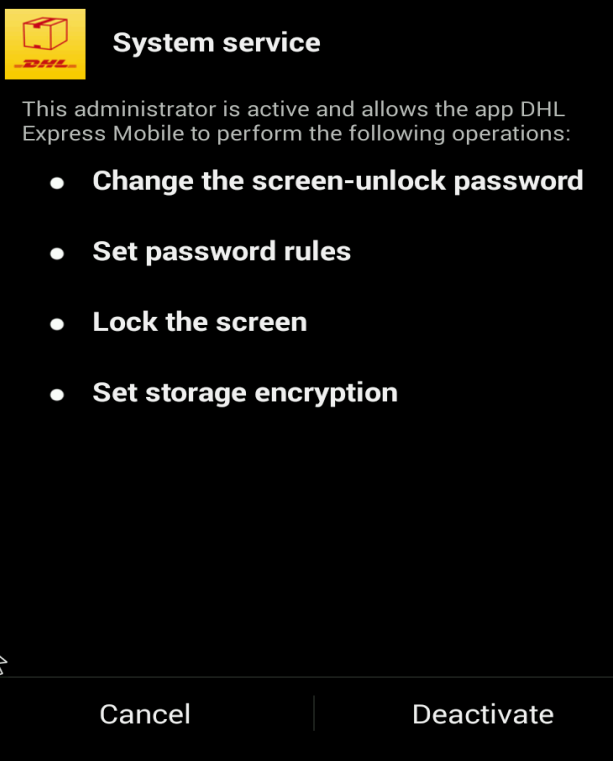
Figure 6 – deactive the app
  • Now, go to  Settings > Applications or Apps > Manage applications > tap the malicious app > Uninstall.

For normal applications that don’t have device administrator rights, only the last step is sufficient.

Afterwards, change all your passwords and notify your bank to be on lookout for any fraudulent transactions. Do this also if your bank is not listed (affected banks pictured in Figure 5).

Additionally, you may want to run a scan with an antivirus or antimalware product for Android. If you’re unsure which antivirus to run, you can try Avast (it also detects the Marcher version discussed in this blog post).

You may want to have a look at other antivirus products if Avast does not suit your needs. A good comparison can be found on AV-test’s website: The best antivirus software for Android.

Note that the best course, in any case, is to backup your files and reinstall your device! Don’t forget to change passwords and notify your bank.

Prevention

  • Don’t root your Android device(s).
  • Don’t just install any app. Use common sense. When in doubt, do not install the app.
  • Be wary of suspicious-looking apps even when they have a lot of positive feedback. These may be fake comments. Ask friends, colleagues or Google. Still not sure? Do not install the app.
  • Download from official app stores only. Even though malware may exist on Google’s Play store, chances are less likely.
  • Use the default, built-in security in Android. For example, do not allow installation of apps from unknown sources and Encrypt Device.
  • Always verify app permissions. Depending on the app, it should not be able to directly call other phone numbers.
  • Back up your files. If something like this ever happens to you, simply reinstall and restore.
  • Install an antivirus. This may be a resident one, meaning no active protection and scanning only.

More useful links are listed below in the Resources section.

Conclusion

While Windows malware still takes the biggest portion, malware for other operating systems is becoming more and more common. In regards to Android, make sure to follow the prevention tips above to stay safe.

Worth noting that, as always, prevention is better than disinfection. Create (and test) back-ups.

Resources

Analysing Android files – Blaze’s Security Blog
Dealing with System Problems in Android: Safe Mode, Factory Reset & Restoring Backups – MakeUseOf
DevicePolicyManager – Android developer area
F-Secure Freedome VPN  – F-Secure
How Do I Delete Applications from My Android Device? – Lifewire
The best antivirus software for Android – AV-Test
What Is A Nandroid Backup and How Exactly Does It Work?  – MakeUseOf
IOCs Continue reading Android malware on the rise

Posted in SBN

Nemucod downloader spreading via Facebook

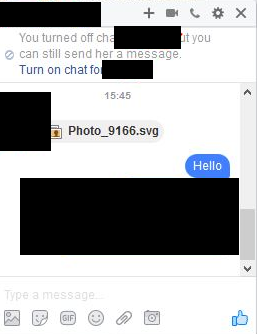
Earlier today, a friend of mine notified me of something strange going on with his Facebook account; a message containing only an image (an .svg file in reality) had been sent automatically:

Photo_9166.svg

Contents of our ‘photo’ are as follows:

Copy of file on Pastebin here

It’s a heavily obfuscated script, which, after opening, redirected you to the following website:

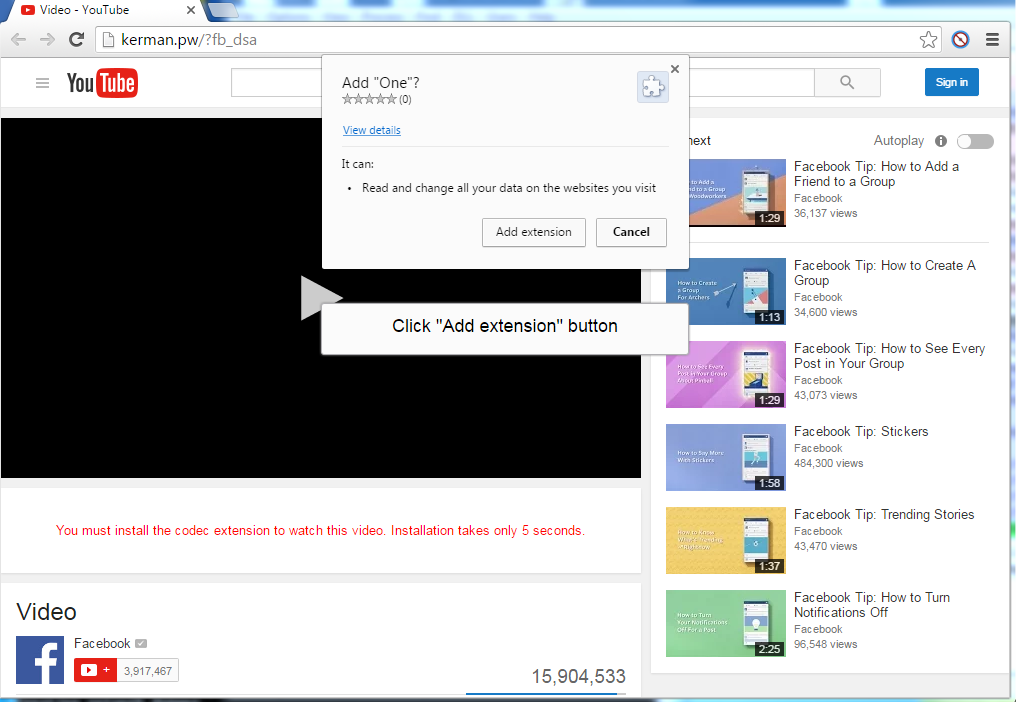
Fake Youtube

A website purporting to be Youtube, wih a video from Facebook – of course, you needed to install an additional extension to view it 🙂

The extension has no icon and thus seems invisible, additionally it can do the following:

Currently, I’m not exactly sure what this extension is supposed to do beside spreading itself automatically via Facebook, but likely it downloads other malware to your machine.

One of my security colleagues had in fact noticed similar behavior and got ransomware (Locky) as payload:

Confirmed! #Locky spreading on #Facebook through #Nemucod camouflaged as .svg file. Bypasses FB file whitelist. https://t.co/WYRE6BlXIF pic.twitter.com/jgKs29zcaG

— peterkruse (@peterkruse) November 20, 2016

The Facebook security team as well as Google Chrome’s store security team have been notified.

Removal

Remove the malicious extension from your browser immediately:

Additionally, run a scan with your antivirus and notify your friends you sent a malicious file.

Conclusion

As always, be wary when someone sends you just an ‘image’ – especially when it is not how he or she would usually behave.

Additionally, even though both Facebook and Google have excellent security controls/measures in place, something bad can always happen.

For those interested, all related files have been uploaded to VirusTotal, and their hashes and domains can be found, as always, on AlienVault’s OTX:
Nemucod downloader spreading via Facebook

Continue reading Nemucod downloader spreading via Facebook

Cybercrime Report Template

In this blog post I’ll be contributing a template or form, made as simple as possible, to enable you to report cybercrime in a more efficient way. Scroll down if you’re not interested in the background story.

The purpose or need of this form arose several years ago, when I wrote a blog post about the ‘blame game’. In short, it handled about how we are all guilty of pointing fingers when a cyberincident occurs.

In reality, the only person or entity to blame, is the one that infected you or your organisation. Since publishing that specific post, cooperation has definitely improved – whether that is due to my post or not, I’ll leave in the middle – an example is the No More Ransom project.

The blog post concluded stating that post-infection information is scarce: there is prevention, incident handling, malware cleaning all around – but available information on what to do afterwards was rather poor.

In short: report it to your CERT or local police department!

You can fill in the template below and download and/or print it as a PDF, which you can submit or include to an organisation of your choosing.

The template is also available online:
Cybercrime Report Template

Disclaimer: no information will be sent to me or Jotform at any point.

Additionally to the template included in this blog post, or in link above, it is also seperately available as a PDF.

Organisations that wish to use this template, are free to do so. I have added the source on Github, which you’ll be able to find here.

Resources

Please refer to the following websites if you would also like to report this seperately:
Report Cybercrime Online (EU)
IC3 Complaint Referral Form (US)
In case you do not want to report this to a specific law enforcement agency seperately, just fill in the form above. If you are willing, it is possible to share any information through Criminal Intelligence teams – this can be completely anonymous, similar to this form.

Be sure to contact your CERT or local police department to ask if they have such a team or anonymous reporting possiblity (see also links above).

You can find a list of CERTs here:
CERTs by Country – Interactive Map
List of National CSIRTs

APCERT team members Continue reading Cybercrime Report Template

EU cookie law and fake Chrome extensions

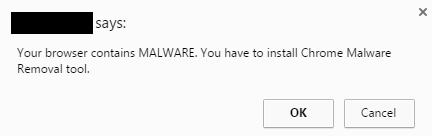
When a website is serving up malware to unsuspecting visitors, it’s often not too hard to find the culprit. In some cases however, it takes a bit more digging. When visiting a (not named on request) specific website, you’re presented with the following message:

Your browser contains MALWARE. You have to install Chrome Malware Removal tool

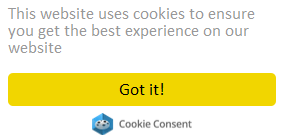
After some digging on the site, nothing was suspicious at first sight. However… It did have a EU cookie law pop-up/consent:

The script behind it is as follows:

… Which contains:

Both scripts contain the warning message and a redirect to the Google Chrome store:

lang = ‘en’;
var msg = ‘Your browser contains MALWARE. You have to install Chrome Malware Removal tool.’;
if (lang == ‘es’) msg = “Su navegador contiene malware. Usted tiene que instalar la herramienta de eliminación de malware Chrome.”;
if (lang == ‘it’) msg = “Il tuo browser contiene malware. È necessario installare strumento di rimozione malware Chrome.”;
if (lang == ‘fr’) msg = “Votre navigateur contient MALWARE. Vous devez installer l’outil de suppression de logiciels malveillants Chrome.”;
if (lang == ‘pt’) msg = “Seu navegador contém malware. Você tem que instalar o Ferramenta de remoção Chrome Malware.”;
if (lang == ‘de’) msg = “Ihr Browser enthält MALWARE. Sie müssen Chrome Malware Removal Tool zu installieren.”;
if (lang == ‘ru’) msg = “Ваш браузер содержит вредоносный код. Вы должны установить расширение для блокировки вредоносного кода.”;
if (lang == ‘gr’) msg = “Το πρόγραμμα περιήγησής σας περιέχει κακόβουλο λογισμικό. Θα πρέπει να εγκαταστήσετε το Chrome Malware εργαλείο αφαίρεσης.”;


You can find both scripts on Pastebin here and here.

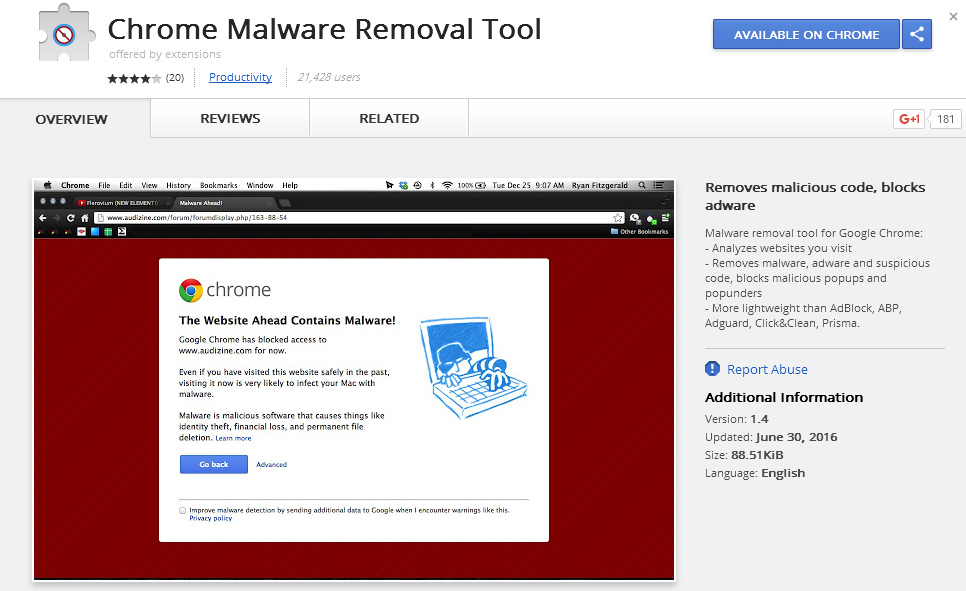
Chrome Malware Removal Tool

At time of writing, it has over 22,000 users. You can find the malicious extension here.

To remove an extension from Chrome:

It is not clear whether the site offering the cookie consent script is hacked, or is in on the ploy.

You can find indicators (for what it’s worth) as always on the AlienVault OTX.

Conclusion

Stay clear from scripts offered by 3rd party EU cookie consent websites and rather create your own pop-up. A trustworthy site to create this for example is cookie-script.

As always when managing a website, keep your CMS (if any) updated as well as any plugins that may be running.

You can find more tips on how to prevent, find (and remove) malicious scripts on your website here.

Continue reading EU cookie law and fake Chrome extensions

Posted in SBN